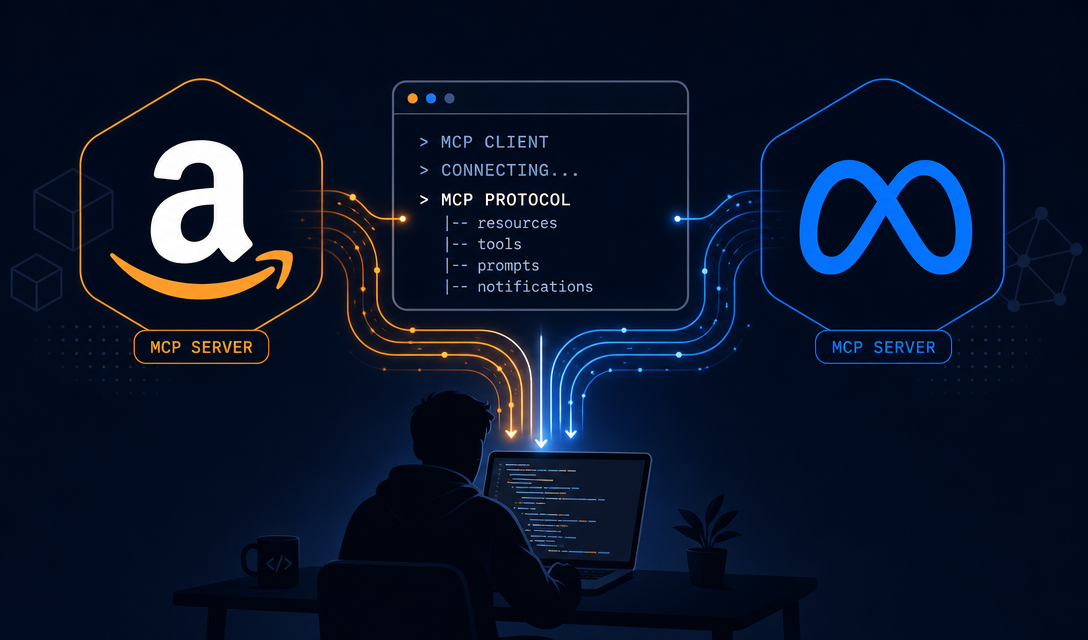
Your Editor Is Already an Agent Platform
Cursor, Claude Code, and OpenAI's Codex CLI all support the Model Context Protocol (MCP). This means they can call external tools — not just write code, but interact with APIs, databases, and services on your behalf.
VibeCom's MCP server gives these editors a growth agent they can call. Any time you mention a product event, milestone, or insight in your editor, it can be routed to Growth Autopilot automatically.
Setting Up the VibeCom MCP Server
Install in 3 steps:
- Go to in your VibeCom dashboard.
- Click the editor deeplink for your editor (Cursor, VS Code, or copy the config for Codex CLI).
- Authorize with your VibeCom account via OAuth. The server is now connected.
After setup, your editor's AI agent can call Growth Autopilot tools in any conversation. No API keys to manage — OAuth handles authentication securely.
Cursor Workflows
Cursor's agent mode can call MCP tools in any conversation. Once VibeCom MCP is connected, you can mix product work and marketing in the same session.
Capturing a feature launch: In the same Cursor session where you just merged the PR, say: "We just shipped the new onboarding flow. Save this as a p0 launch material for content generation."
Cursor calls create_material. The context is saved. Next morning, Growth Autopilot generates platform-native posts from it.
Running a content batch on demand: "Generate a full content batch for this week based on what's in my materials library."
Cursor calls growth_task with the generate skill. The agent reads your materials, channels, and post history, then drafts a full week of posts. You review them in the dashboard.
Checking your review queue without leaving Cursor: "What posts are waiting for my review?"
Cursor calls list_posts and returns a summary. You can approve directly or navigate to the for the full review interface.
Claude Code Workflows
Claude Code runs in the terminal and supports MCP out of the box. With VibeCom MCP connected, you can run growth agent tasks from the command line.
Quick material capture:
$ claude "we just hit 1000 signups — save this as a metric material with high priority"
Claude Code calls create_material with category: "metric", priority: "p0". Done in seconds.
Product research update:
$ claude "run product research again — we pivoted our ICP last week"
Claude Code calls growth_task with the product_research skill. The agent re-runs the research pipeline and updates your product context.
Competitor check:
$ claude "what are my top competitors doing this week?"
Claude Code calls list_competitors and surfaces recent competitor activity from your radar, plus runs a quick web search for any new developments.
Codex CLI Workflows
OpenAI's Codex CLI also supports MCP. The workflows are similar to Claude Code — short commands from the terminal that trigger growth agent actions.
$ codex "I just fixed the biggest bug we've had in months — stripe webhook retries. Save this story for content."
$ codex "generate content for the next 3 days based on my latest materials"
$ codex "show me my post review queue"
All of these call VibeCom MCP tools directly from your terminal session.
VS Code and Other Editors
Any MCP-compatible editor can connect to the VibeCom MCP server. The config format is standard — add the server endpoint and OAuth token to your editor's MCP config file.
For VS Code with Copilot, Claude, or other AI extensions that support MCP: add the VibeCom server config to your MCP settings, restart the extension, and the tools are available in any agent session.
What Tools Are Available via MCP
The VibeCom MCP server exposes ~19 tools, including:
| Tool | What it does |
|---|---|
growth_task | Natural language goal → full agent pipeline |
create_material | Save a content signal (news, launch, metric, story) |
list_materials | Browse your materials library |
list_posts | See your review queue |
update_post_status | Approve or reject posts |
list_channels | See your connected channels |
list_competitors | See your competitor list + radar data |
list_keywords | See your SEO keyword library |
start_product_research | Re-run the product research pipeline |
CRUD tools (list, create, update) are available on all plans including Free. The growth_task agent tool and start_product_research require Pro or Growth.
Best Practices for IDE-Based Marketing
Capture in the moment. The best content comes from real-time capture. When you ship something, hit a number, or have a genuine insight, capture it before the context fades. One sentence is enough.
Don't over-engineer the prompts. You're talking to an agent, not writing a spec. "We just launched payments" is better than a three-paragraph description of your Stripe integration. The agent will ask for more context if it needs it.
Use the dashboard for review. The IDE is optimized for capturing and triggering. The is optimized for review — reading drafts, editing, approving, and managing your content calendar.
Mix manual and automatic. Let the daily collect cron run automatically in the background. Use your editor for manual captures when something notable happens. The combination — automatic background collection + targeted manual input — produces the best content library.
Getting Started
from your dashboard. The deeplink installs the config automatically for Cursor. For other editors, copy the config values and add them to your editor's MCP settings file.
Then try your first capture: tell your editor about something notable that happened in your product today. The growth agent will handle the rest.
See for the full feature set and for plan details.